Set up your appointment-type mappings
You don't need to set up appointment-type mappings before syncing. i-consult asks you to classify each new consult type as it appears, and you can also set them up ahead of time.
You don't have to set up mappings before your first sync. When a sync meets an appointment type i-consult hasn't seen before, it asks you to classify it there and then. Setting your types up in advance is optional, and useful mainly if you'd rather classify them all in one go.
This is part of the i-consult sync workflow. For the sync itself, see Sync your appointments to i-consult.
What a mapping does
Every EMR consult type is classified one of three ways, and the classification decides what a sync does with it:
- New creates an i-consult episode. These are the patients who will be invited to a pre-consult questionnaire.
- Follow-up is skipped. No episode is created.
- Exclude is skipped. No episode is created.
Once a type is classified, i-consult remembers it and reuses that classification on every future sync. You only revisit a type if you want to change it.
Only New types create episodes. Follow-up and Exclude types are skipped on every sync, so you won't invite a follow-up patient by accident.
Classify a new type during a sync
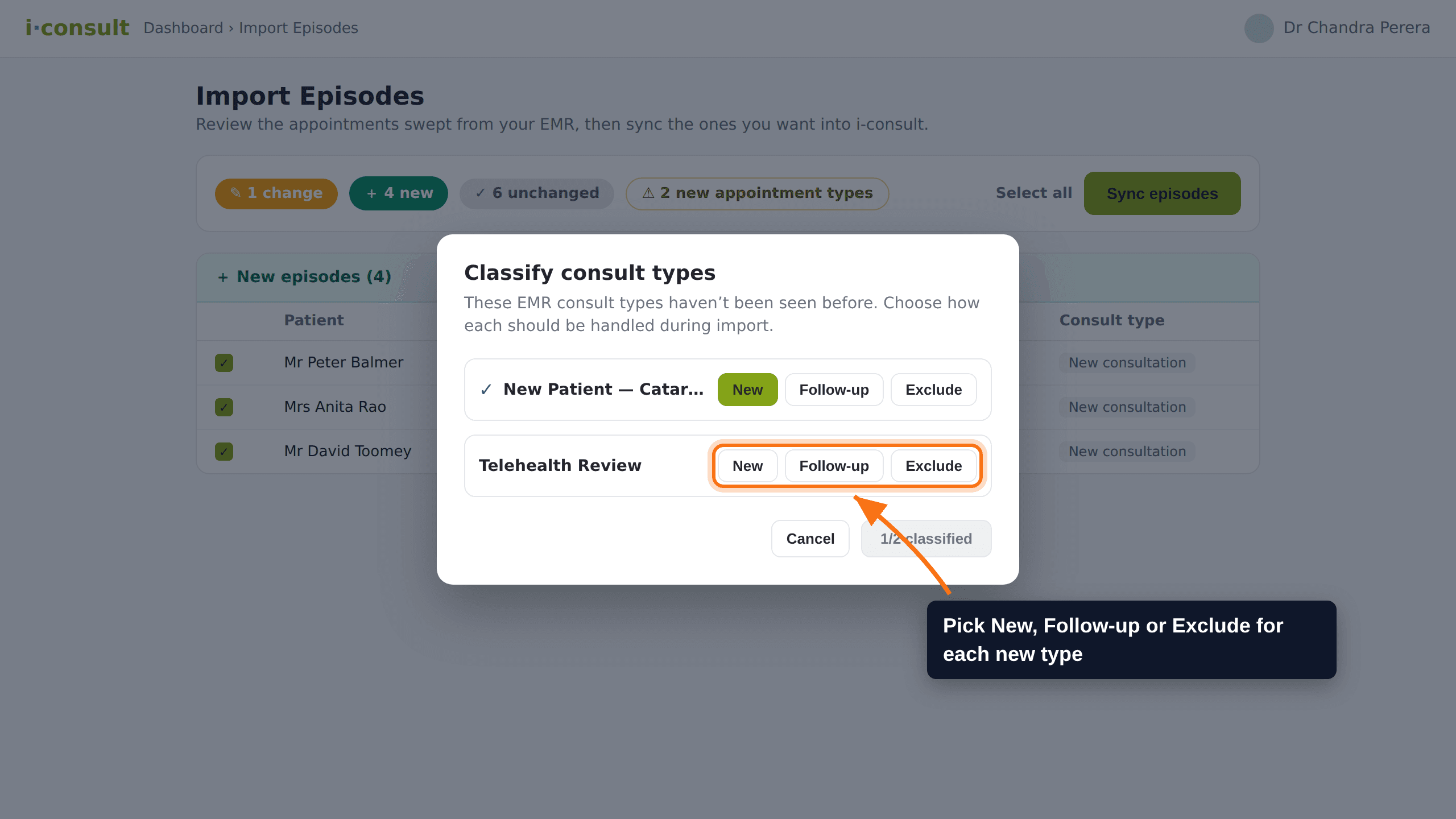
The usual way you'll set a mapping is as you sync. If the appointments swept from your EMR include a consult type i-consult hasn't seen, the Classify consult types prompt appears when you click Sync. You choose how each new type should be handled, and the sync carries on.
Run a sync from your EMR as usual, then click Sync on the import page.
If any appointment types are new, the Classify consult types prompt opens and lists them.
For each type, choose New, Follow-up or Exclude.
Once every type is classified, the prompt closes and the sync finishes. Your choices are saved for next time.
Set them up ahead of time (optional)
If you'd rather classify your consult types in one sitting instead of as they come up, you can do it in i-consult's settings before you sync.
Open the appointment-type mapping settings in i-consult (Settings > Integrations > Browser extension > your EMR).
You'll see the consult types i-consult has already seen from your EMR.
For each type, choose New consultation, Follow-up or Excluded.
Save. Your choices are applied on every sync from now on.
The wording differs slightly between the two places. The sync prompt shows New, Follow-up and Exclude; the settings page shows New consultation, Follow-up and Excluded. They are the same three classifications.
Keeping mappings up to date
You don't need to keep the list current by hand. Any new consult type is caught the next time it turns up in a sync, and you classify it then. If you add a type in your EMR and want it set before its first appointment syncs, you can classify it early in the settings page.
Classification controls which appointment types create episodes, but it isn't the only filter. Every sync also skips past appointments and appointments without a valid Australian mobile number. So a New type can still be skipped if, for example, the patient's record has no valid mobile. You remain responsible for checking the right patients are being invited.
If it doesn't work
- A patient who should have been invited wasn't created → check the appointment's consult type is classified as New, and that the patient has a valid mobile on their record. See Sync your appointments to i-consult.
- Follow-up patients are getting invited → check that consult type is classified as Follow-up or Exclude, not New.
Do I need to set up mappings before my first sync?
No. When a sync meets an appointment type i-consult hasn't seen, it asks you to classify it on the spot. Setting your types up in the settings page ahead of time is optional.
What's the difference between Follow-up and Exclude?
For syncing, both are skipped and neither creates an episode. Use Follow-up for review or follow-up appointment types, and Exclude for types that should never go to i-consult. The distinction keeps your list readable.
I classified a type as New but no episode was created. Why?
Classification is one filter. The sync also skips past appointments and those without a valid Australian mobile. Check the appointment is upcoming and the patient's record has a valid mobile.
Can I change a classification later?
Yes. Open the appointment-type mapping settings in i-consult, change the type, and save. The new classification applies on the next sync.
Was this guide helpful?