A tour of the i-consult dashboard
A tour of the optional i-consult dashboard: episode list, Status column, filters, search, Create Patient Episode, and the episode status stepper. Most clinicians never open it.
The i-consult dashboard lets you see every patient episode in one place, create episodes manually, and check where each patient is up to. This is a quick orientation to what's on it.
The dashboard is optional, and most clinicians never open it. Because the structured history flows into i-scribe automatically, you don't need the dashboard for day-to-day work. Open it only when you want to look deeper. For how the everyday flow works, see How i-consult fits your day.
The episode list
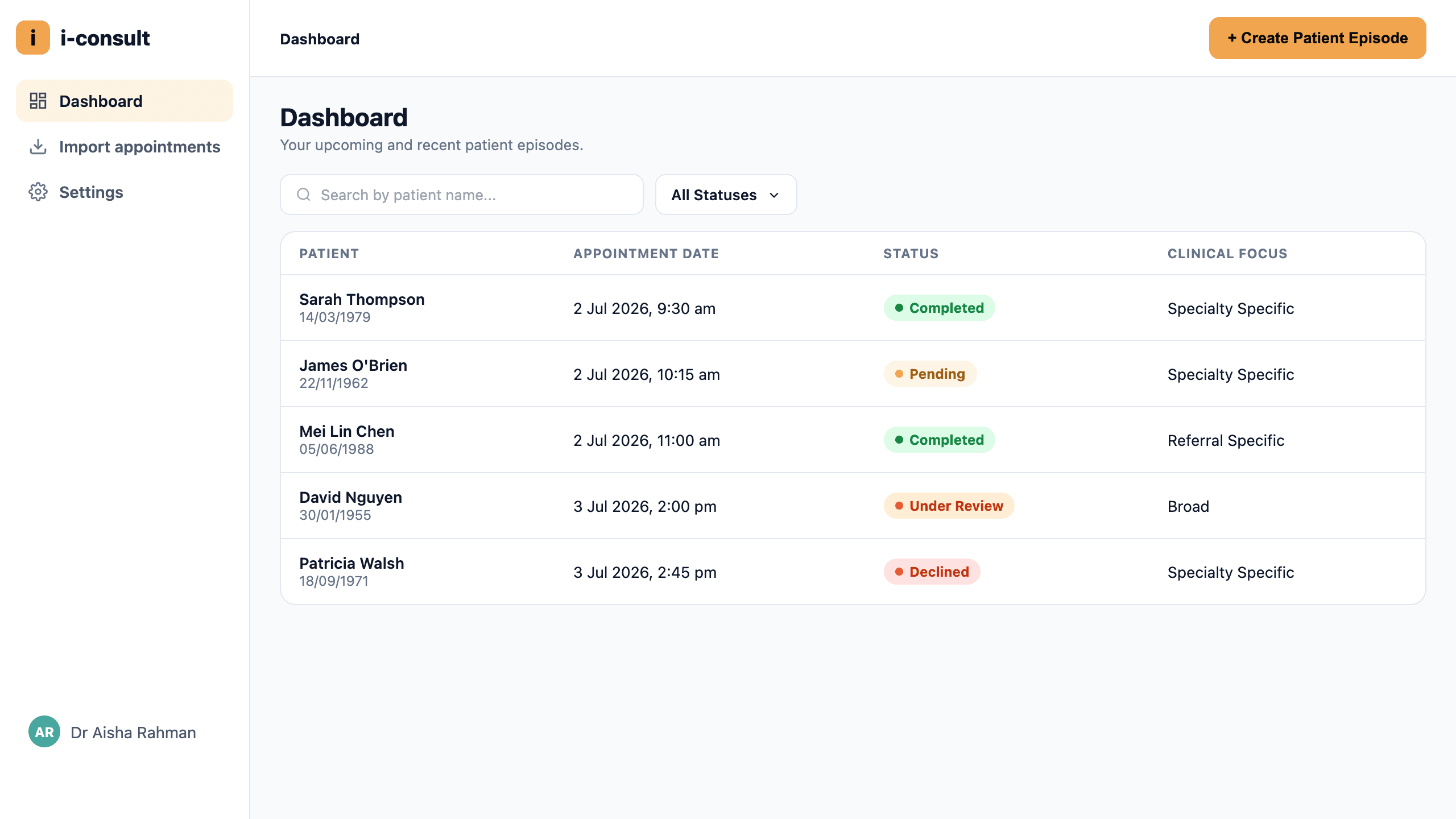
The Dashboard is the main screen. It lists your patient episodes in a table with these columns:
- Patient: the patient's name.
- Appointment Date: when their appointment is scheduled.
- Status: where the episode is in its lifecycle (see below).
- Clinical Focus: what the questionnaire is targeting.
If you're a secretary, you'll also see a Clinician column showing which clinician each episode belongs to.
If you haven't created anything yet, you'll see an empty state: "No patient episodes found" with "Create your first patient episode to get started."
The Status column
The Status column tells you, at a glance, where each episode is up to. The labels are Pending, Completed, Declined, and Under Review.
For exactly what each status label means, see What the episode statuses mean.
Filters and search
To narrow the list down:
- Search: use the Search by patient name... box to find a specific patient.
- Status filter: filter by All Statuses, Pending, Completed, Declined, or Under Review.
- Clinician filter (secretaries only): use the All Clinicians trigger to focus on one clinician's patients.
- Clear Filters: reset everything back to the full list.
Create Patient Episode
The Create Patient Episode button (top of the dashboard) lets you add a patient manually, for example when an appointment wasn't synced automatically from your EMR. You enter the patient and appointment details, and i-consult schedules the questionnaire SMS for you.
For a full walkthrough of the form fields, see Create a patient episode manually.
The status stepper
Open any episode to see its status stepper, a visual track of how far the patient has progressed, in this order:
Created: the episode exists.
SMS Scheduled: the questionnaire link is queued to send.
SMS Sent: the patient has been sent their link.
Chat Started: the patient has begun the questionnaire.
Chat Completed: the patient has finished answering.
History Generated: the structured history is ready (and is in i-scribe).
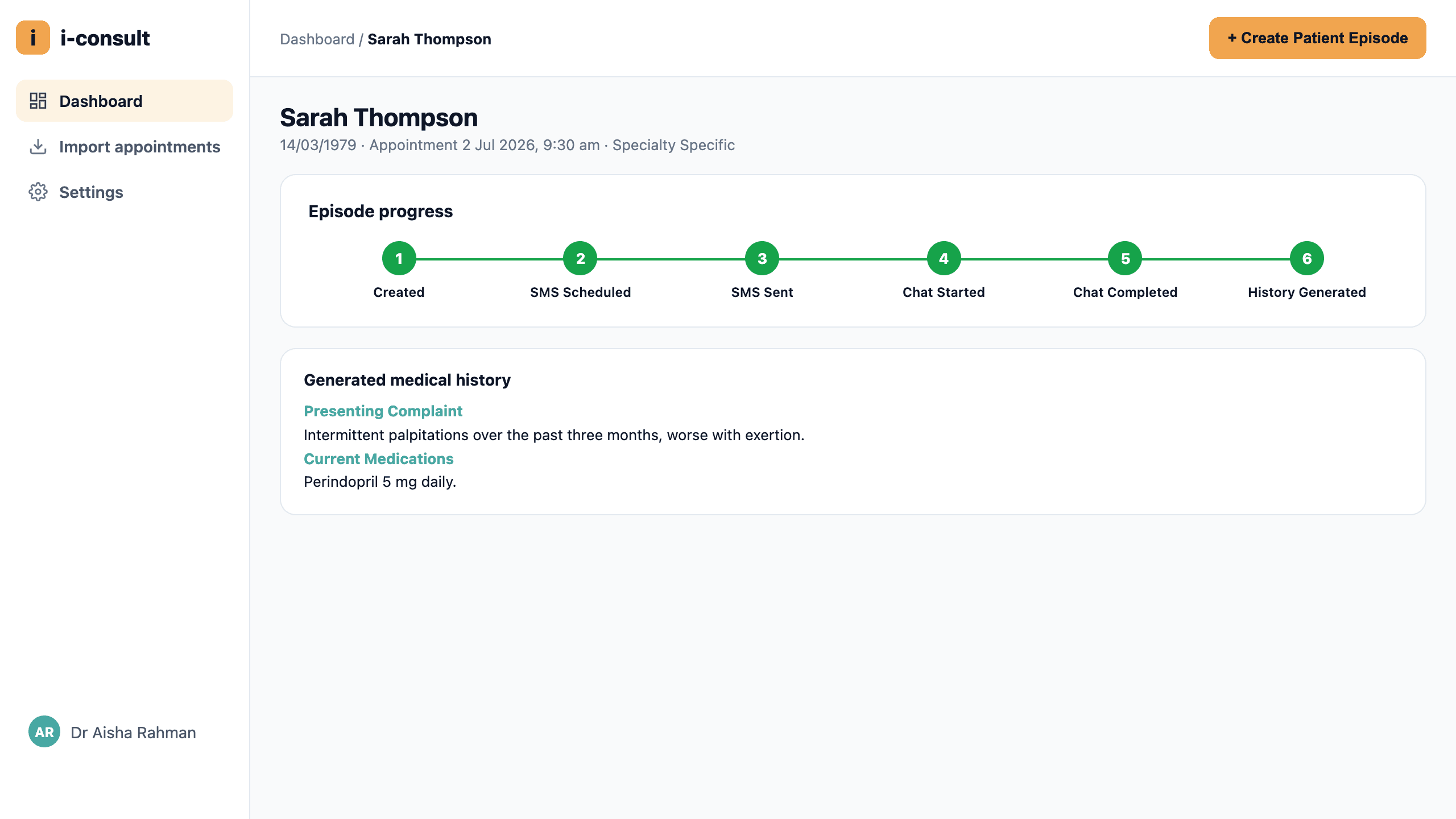
This is handy when you want to know whether a patient has engaged yet, or whether their history is ready to review.
Where to go next
- For the everyday, no-dashboard workflow, see How i-consult fits your day.
- To understand the status labels, see What the episode statuses mean.
- To add a patient by hand, see Create a patient episode manually.
Was this guide helpful?