How to Remove The i-scribe Shortcut
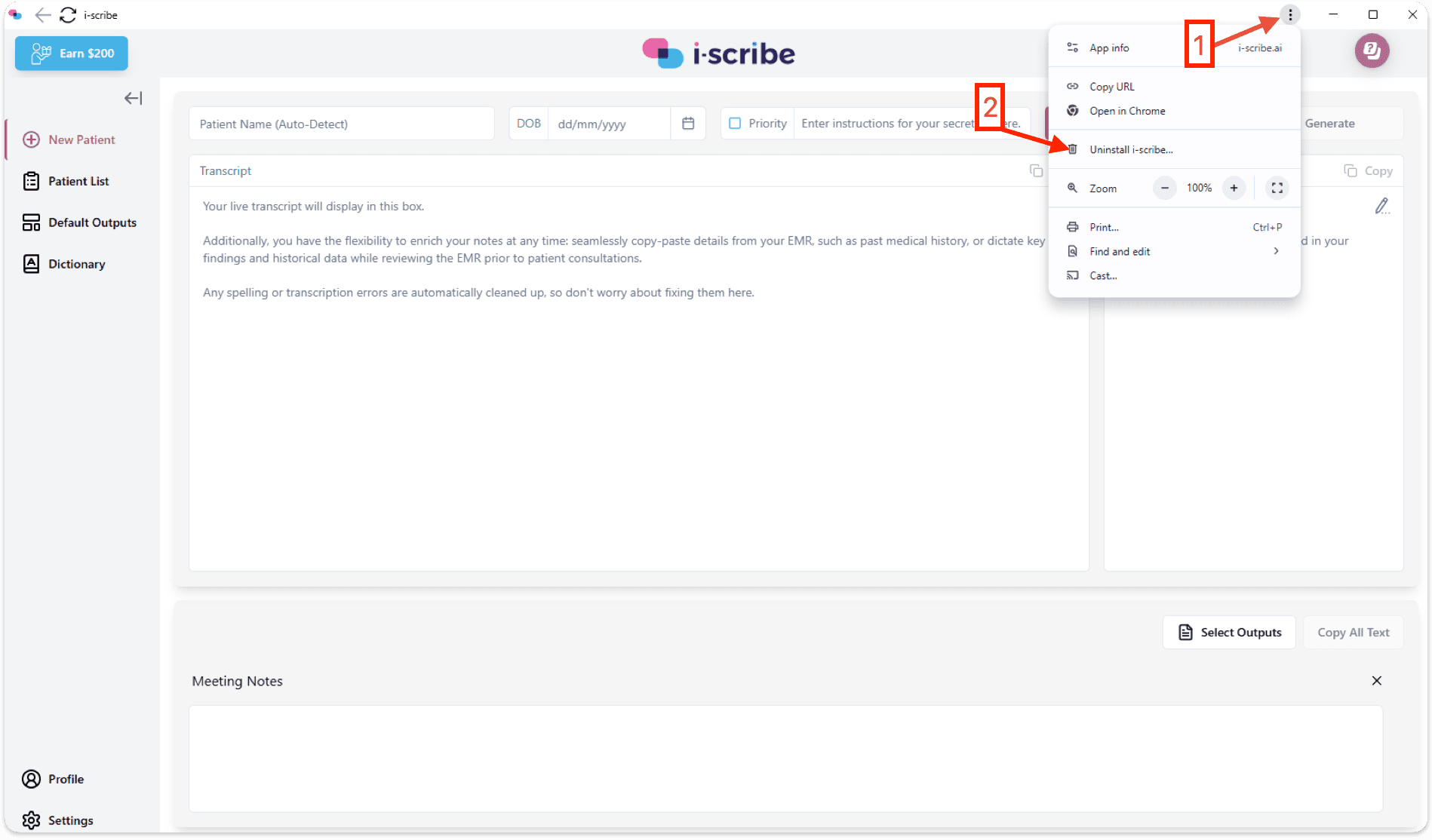
1. Click the 3 vertical dots on the i-scribe installed shortcut (number 1 in screenshot below). Then, click "Uninstall i-scribe" (number 2 in screenshot below).
If you've created a website shortcut using a browser (via "Create shortcut..." or "Install app" options), it may appear on your Desktop, Start Menu, or in your Applications folder. Here's how to remove it.
First: Open the i-scribe shortcut/web extension
- Some people will refer to this as an "app" - as it does resemble an "app".
🖥️ For Windows Users
Method 1
- Click the 3 vertical dots on the i-scribe installed shortcut (number 1 in screenshot below). Then, click "Uninstall i-scribe" (number 2 in screenshot below).
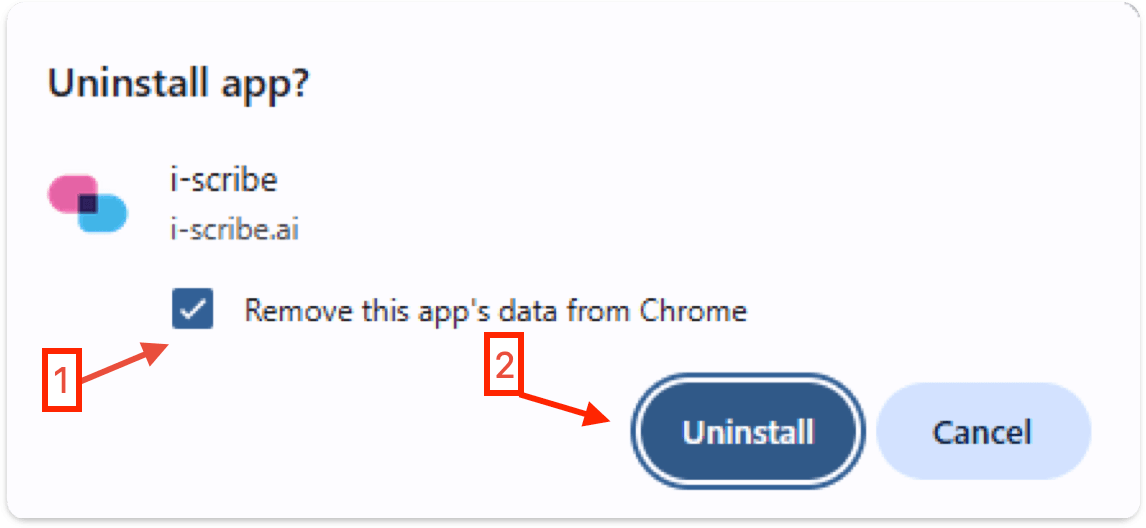
- You may be prompted to "Remove this app's data from Chrome". If so, click number 1 and then number 2 in screenshot below.
Method 2
From Chrome Itself:
- Open Google Chrome.
- In the address bar, type:
chrome://apps
- Right-click the shortcut or app you want to remove.
- Select Remove from Chrome…
- Confirm by clicking Remove.
🍎 For macOS Users
Method 1
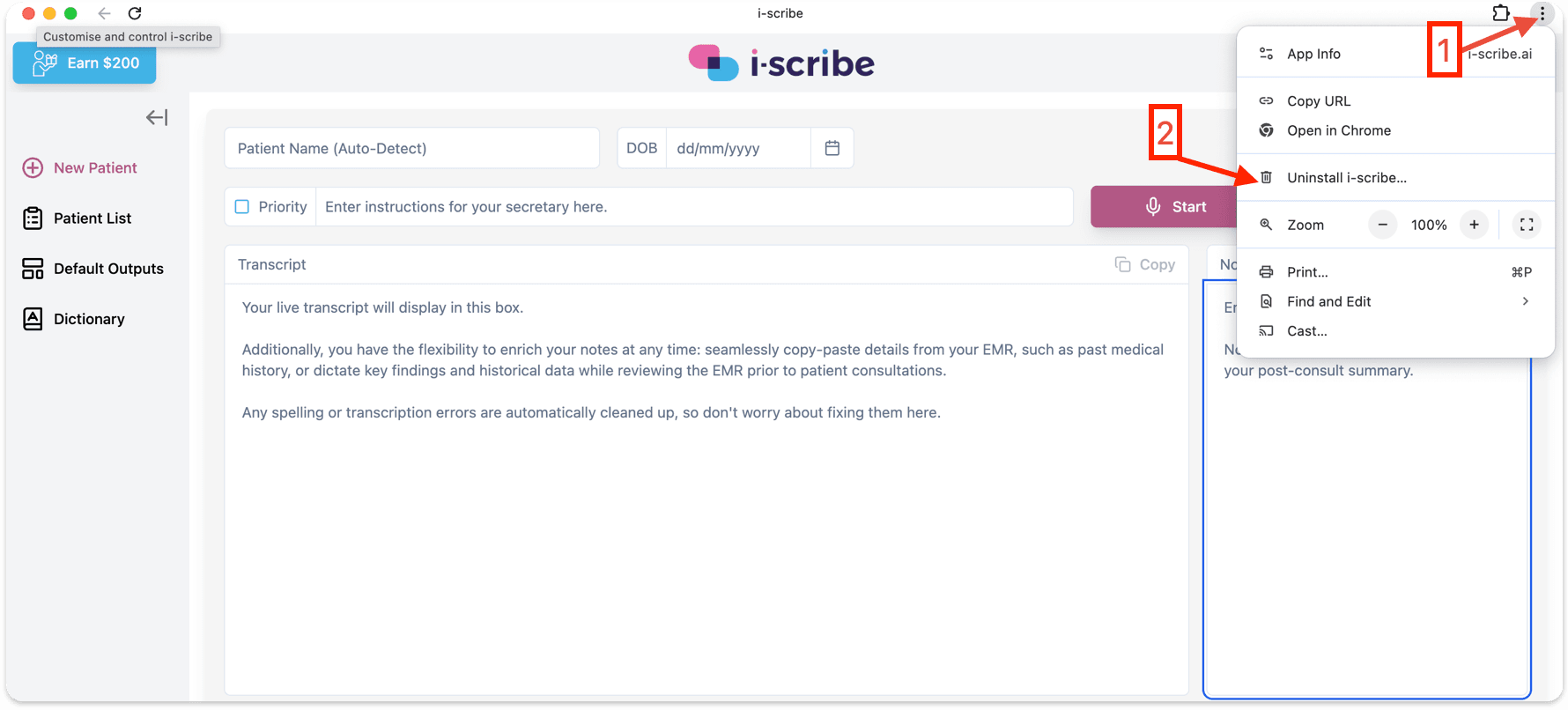
- Click the 3 vertical dots on the i-scribe installed shortcut (number 1 in screenshot below). Then, click "Uninstall i-scribe" (number 2 in screenshot below).
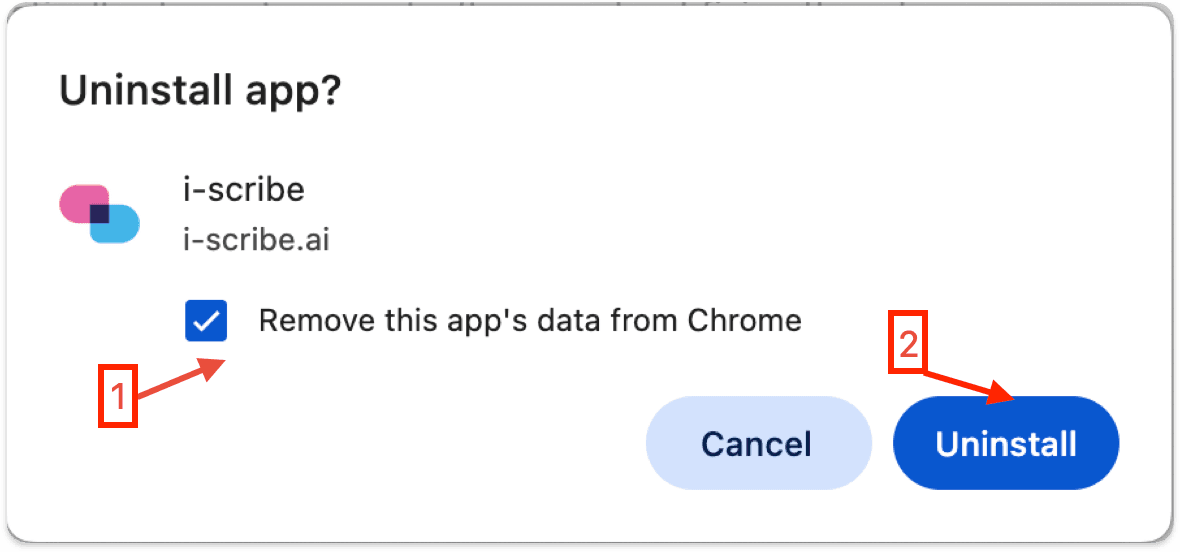
- You may be prompted to "Remove this app's data from Chrome". If so, click number 1 and then number 2 in screenshot below.
Method 2
From Chrome:
- Open Chrome.
- Type in the address bar:
chrome://apps
- Right-click on the website shortcut.
- Click Remove from Chrome > Remove.
Was this guide helpful?