My microphone isn't working
1. Review normal microphone behaviour
What to do when your microphone isn't recording...
Troubleshooting:
- Review normal microphone behaviour
- See video below - in "Supporting videos and information" section - "1. Review normal microphone behaviour"
- If using i-scribe microphone, confirm that microphone is not muted:
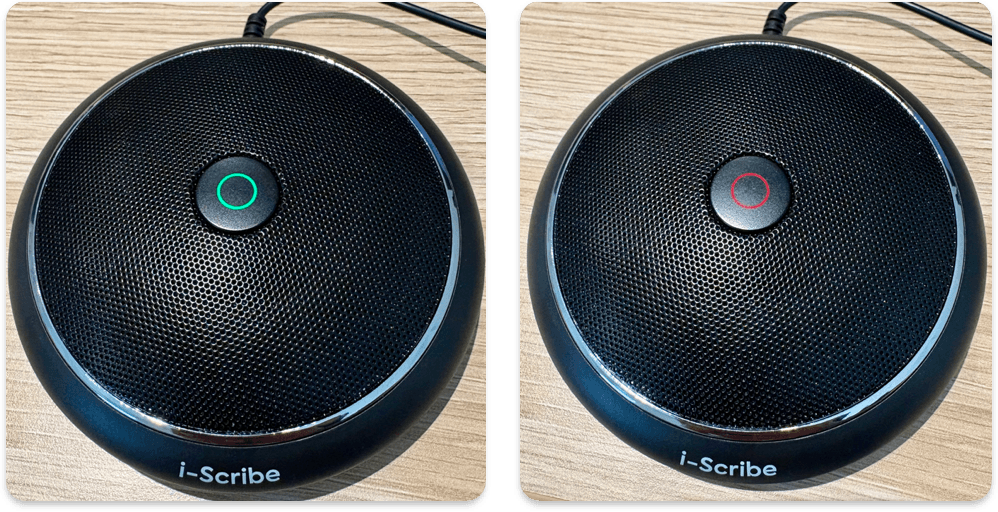
- Check the microphone's physical connection(s)
- Try using the in-built microphone
- Adjust browser settings to allow microphone
- See video below - in "Supporting videos and information" section - "2. Adjust Browser Settings"
- Additional tip: If you notice your microphone is working sometimes but not others, then make sure to set your microphone as the default option.
- If using Apple, adjust Apple microphone settings
- Refer to below - in "Supporting videos and information" section - "3. Apple Safari and Apple Sound Settings"
- If using Windows 7/8/10/11
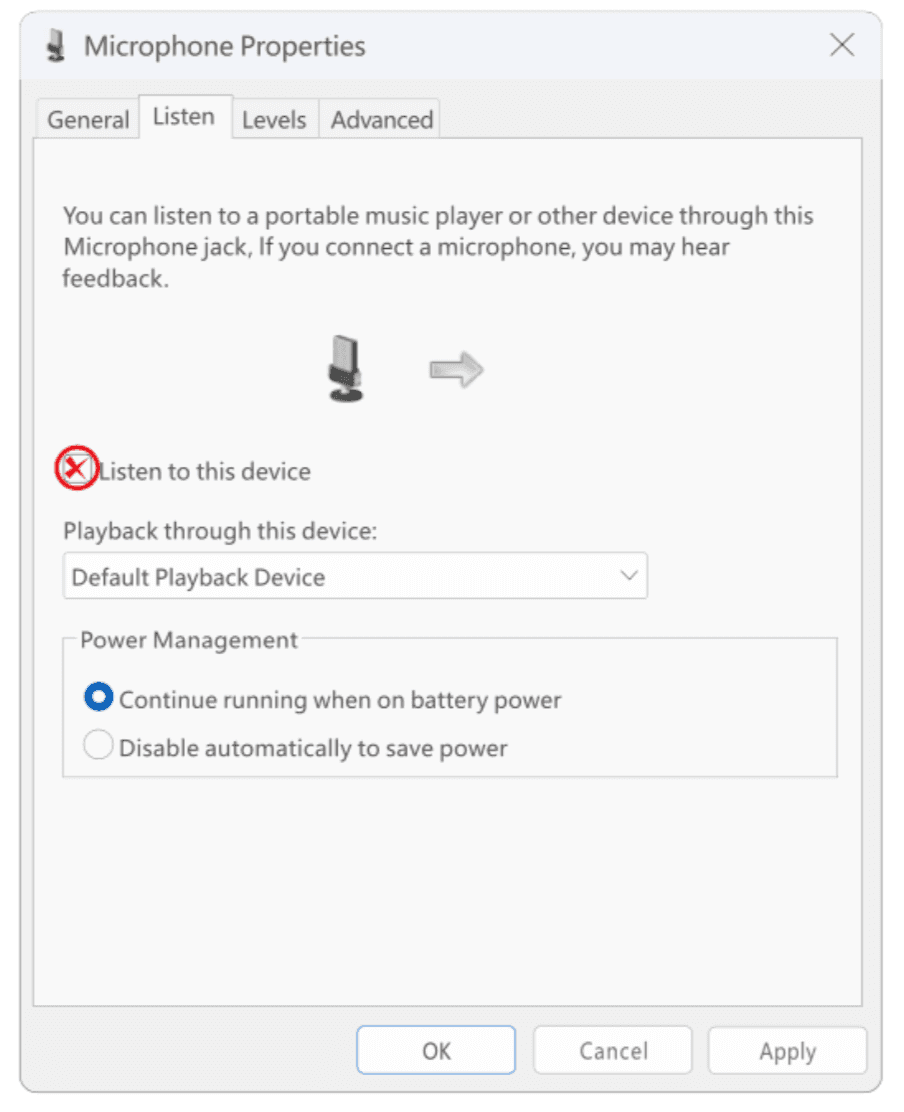
- Turn off "Listen to this device"
- Refer to below - in "Supporting videos and information" section - "4. On PC, turn off 'Listen to this device'"
- Try using Google Chrome (if on a computer or laptop - whether mac or PC)
- Try using Safari (if on an Apple mobile device)
- Update your browser software (and other software)
- After updating software, turn the device off and on
- Turn computer bluetooth off
Some issues arise from a poor input to the microphone. These tips can help the microphone receive a clear signal from the user:
- Speak slowly
- Clearly enunciate
- Face the microphone and remain as close as possible
Supporting videos and information:
1. Review normal microphone behaviour:
Loading video player...
2. Adjust Browser Settings:
The video below shows the various settings for Google Chrome because we've found that to be the most reliable browser:
Loading video player...
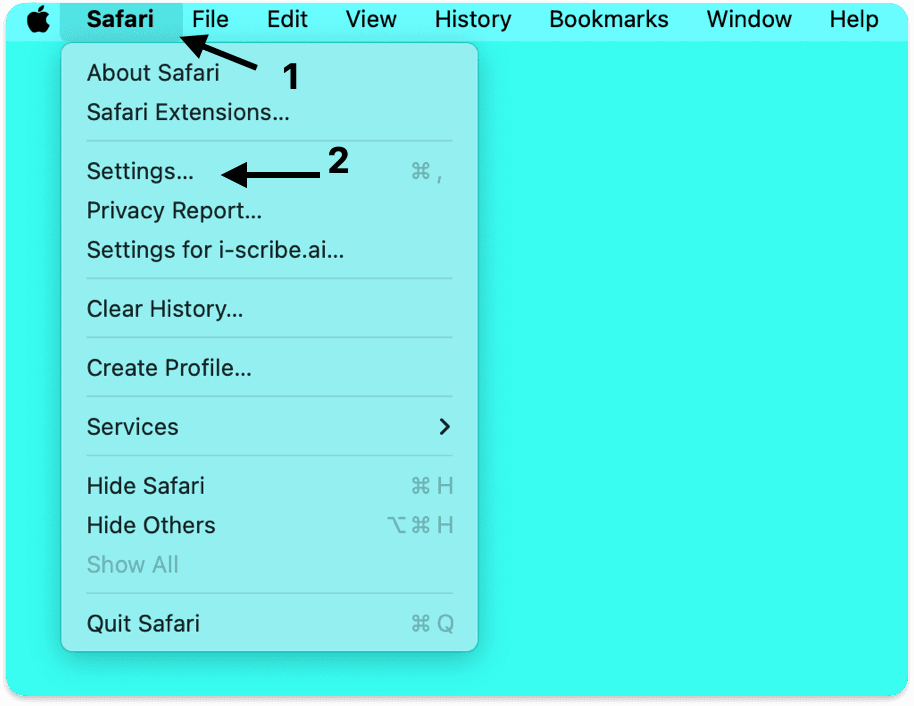
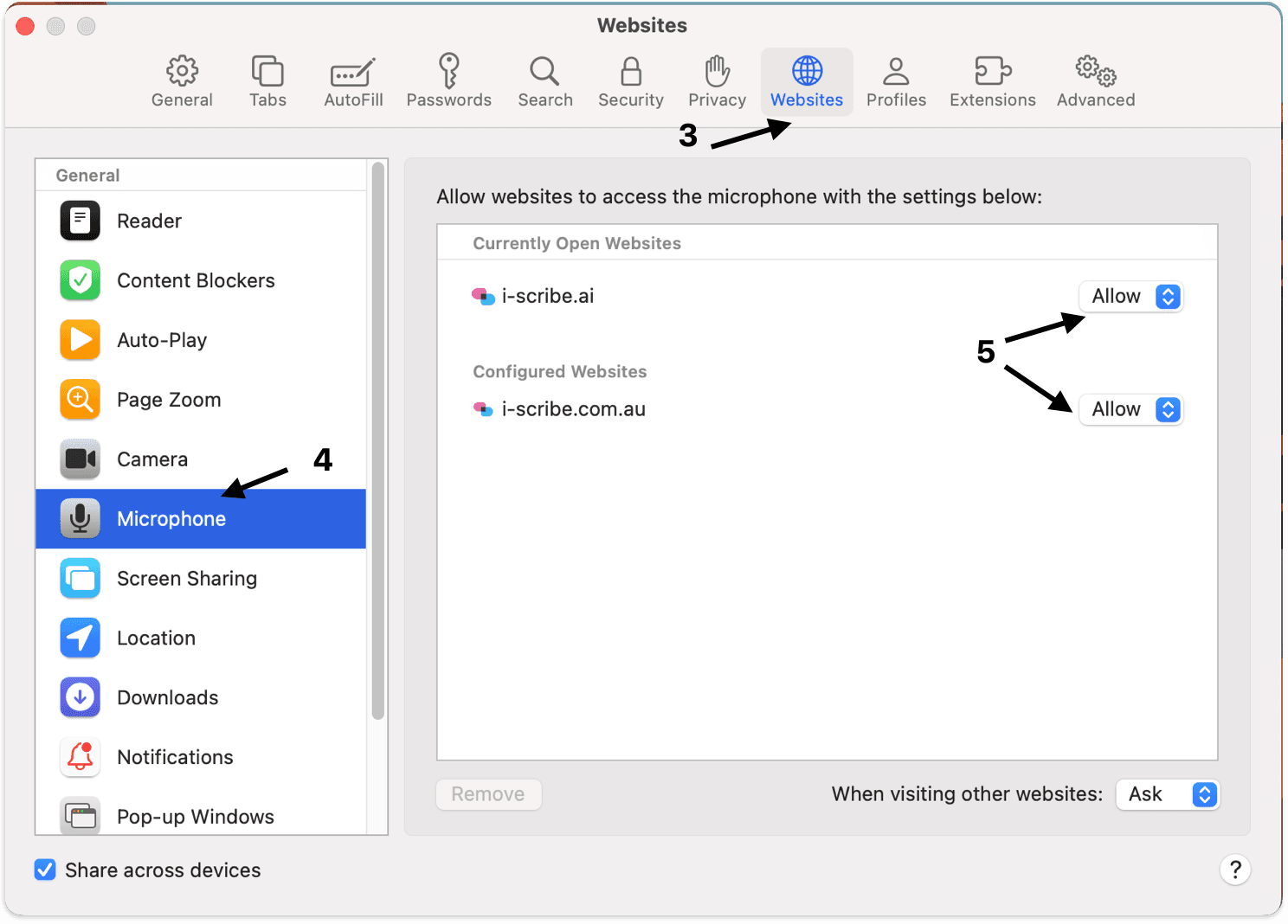
3. Adjust Apple Safari and Apple Sound Settings
Follow the numbers in the screenshots below to enable the microphone for i-scribe in the Apple Safari settings.
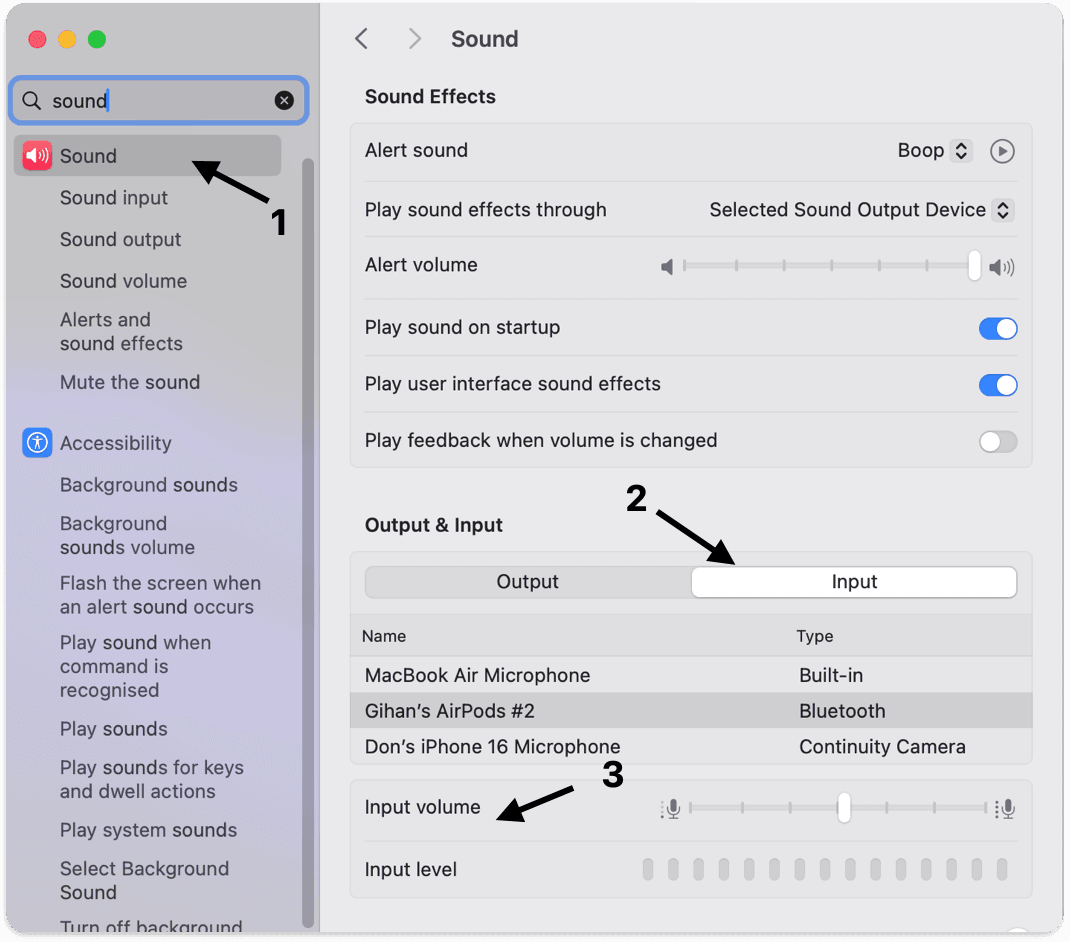
Follow the numbers in the screenshots below to enable the microphone for i-scribe in the Apple Sound settings.
- Click "Sound" (number 1 below)
- Then "Input" (number 2 below)
- Select the appropriate microphone from the list
- Turn "Input Volume" (number 3 below) up to at least 60%
4. On PC, turn off "Listen to this device"
- Make sure the setting below is turned off (see screenshot below).
- This setting can be found in different locations, depending on the version of windows you are using.
Please let us know if you have any other questions
Was this guide helpful?