Turn plain text outputs on or off (plain text vs rich text)
i-scribe outputs are typically plain text by default, because each EMR handles formatting differently. You can turn this off to get rich text.
i-scribe outputs are typically plain text by default. This is because each EMR handles formatting differently, so plain text results in the fewest issues when you copy and paste into your EMR. However, you can turn this feature off.
This setting controls bold text, headings, bullet points and some types of paragraph formatting. Your note or letter content stays the same either way. You can switch between plain text and rich text at any time.
Plain text (the default)
Plain text keeps your output laid out and easy to read. Line breaks, paragraph breaks, section labels and hyphen lists stay in place. What it leaves out is rich text formatting, like bold, heading styles and bullet points.
Your EMR or letterhead applies its own font and style.
Rich text
Rich text adds styling on top: bold, heading styles, bullet points and numbered lists.
Rich text looks tidier in i-scribe, but every EMR handles formatting differently. When you paste it in, you might see odd spacing, the wrong font size, or stray symbols.
Examples
Here's the same part of a note in each format. Where plain text uses a hyphen, rich text uses a bullet point.
Rich text
History
- Chest pain on exertion for 3 weeks
- No shortness of breath

Plan
- Stress echo
- Review in 2 weeks
Plain text
History
- Chest pain on exertion for 3 weeks
- No shortness of breath
Plan
- Stress echo
- Review in 2 weeksWhich one should I use?
Most people should stay with plain text.
If you'd like bold, headings and lists in your outputs, try rich text. If the formatting comes out wrong when you paste, switch back to plain text.
For other ways to fix pasting problems, including how to check your EMR's template settings, see My formatting doesn't work when pasting from i-scribe?
How to switch between plain text and rich text
- Log in to your i-scribe account.
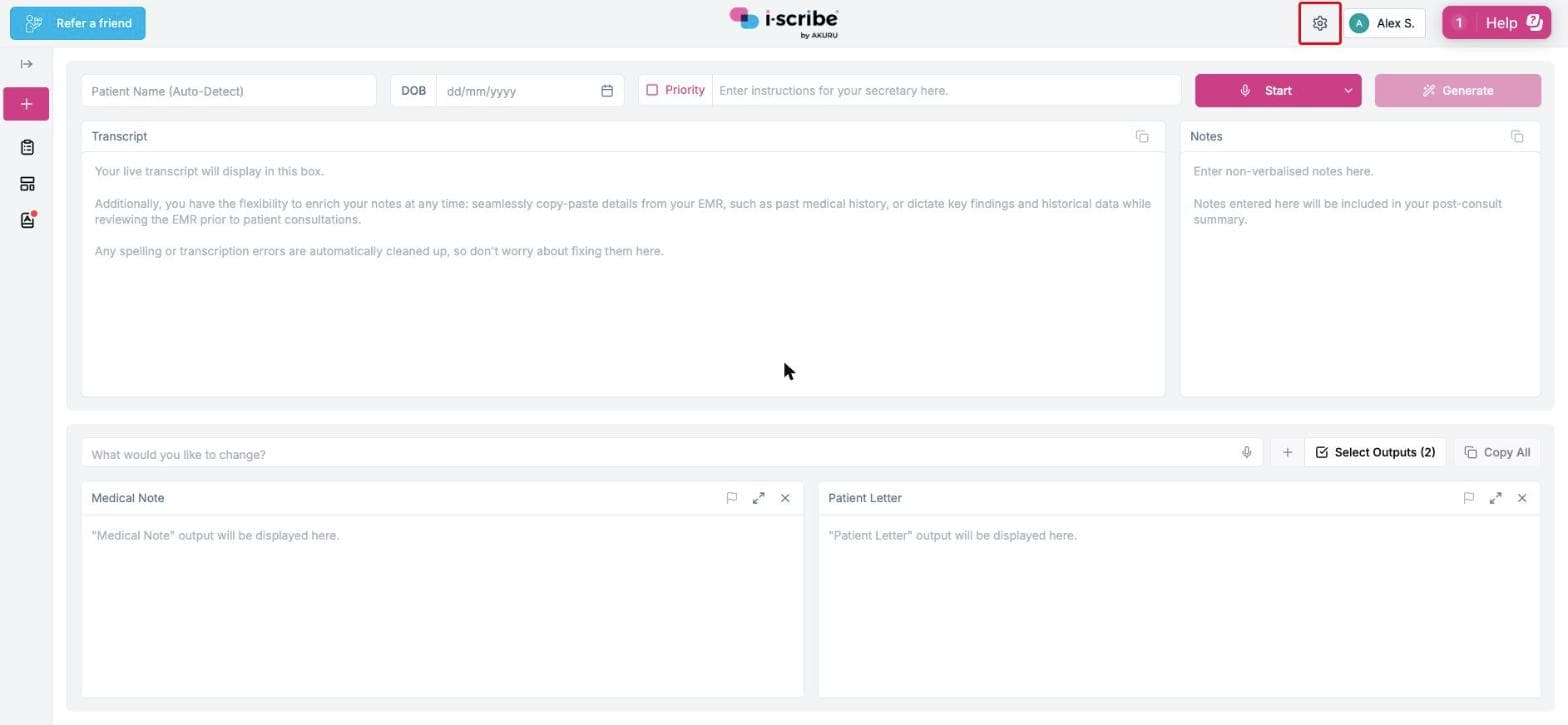
- Click the Settings cog in the top right (red box in the image below).
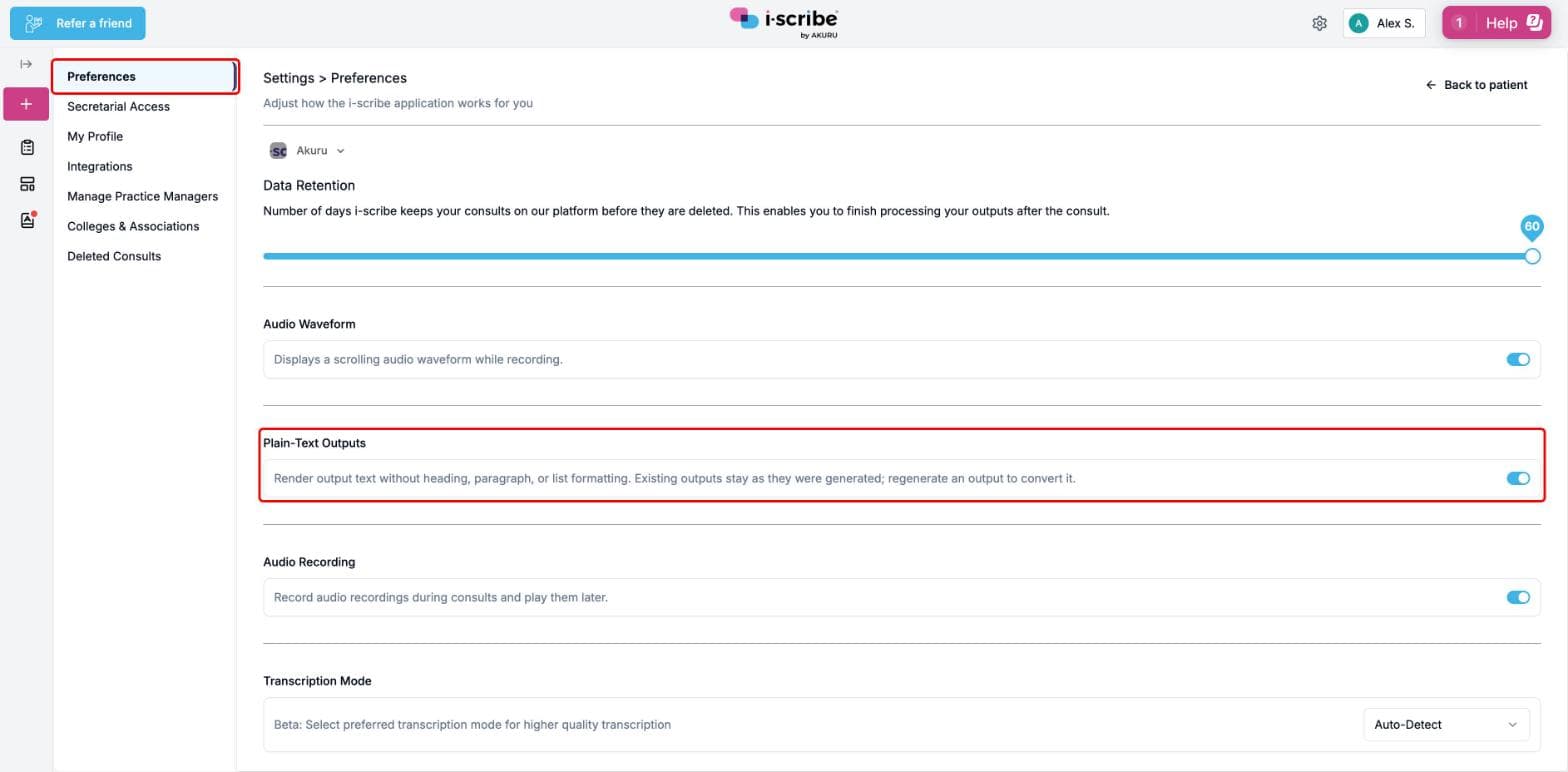
- Click Preferences (it opens by default).
- Find Plain-Text Outputs (red boxes in the image below).
- Click the toggle on the right. On gives you plain text. Off gives you rich text.
If you don't see this option in your settings, contact the i-scribe support team and we can make it available to you.
What happens to outputs you've already generated
The setting only applies to new outputs. Outputs you've already generated stay as they were. To change an existing output, regenerate it after switching the setting.
Was this guide helpful?