Quick-start guide: Setting up your i-scribe account
This guide will walk you through setting up i-scribe step by step. Follow the sections below to get started.
Getting started
- Create an i-scribe account at i-scribe.ai/sign-up
- If you have an existing account, log in at i-scribe.ai/sign-in.
- You can log in using your email address and password (recommended) or with your Google credentials.
Select how many days data is kept
- Click on the Settings button (number 1 in image below)
- Click Preferences (number 2 in image below)
- Adjust the Data Retention to your desired setting (red arrow in image below)
- Click Save Changes (number 3 in image below)
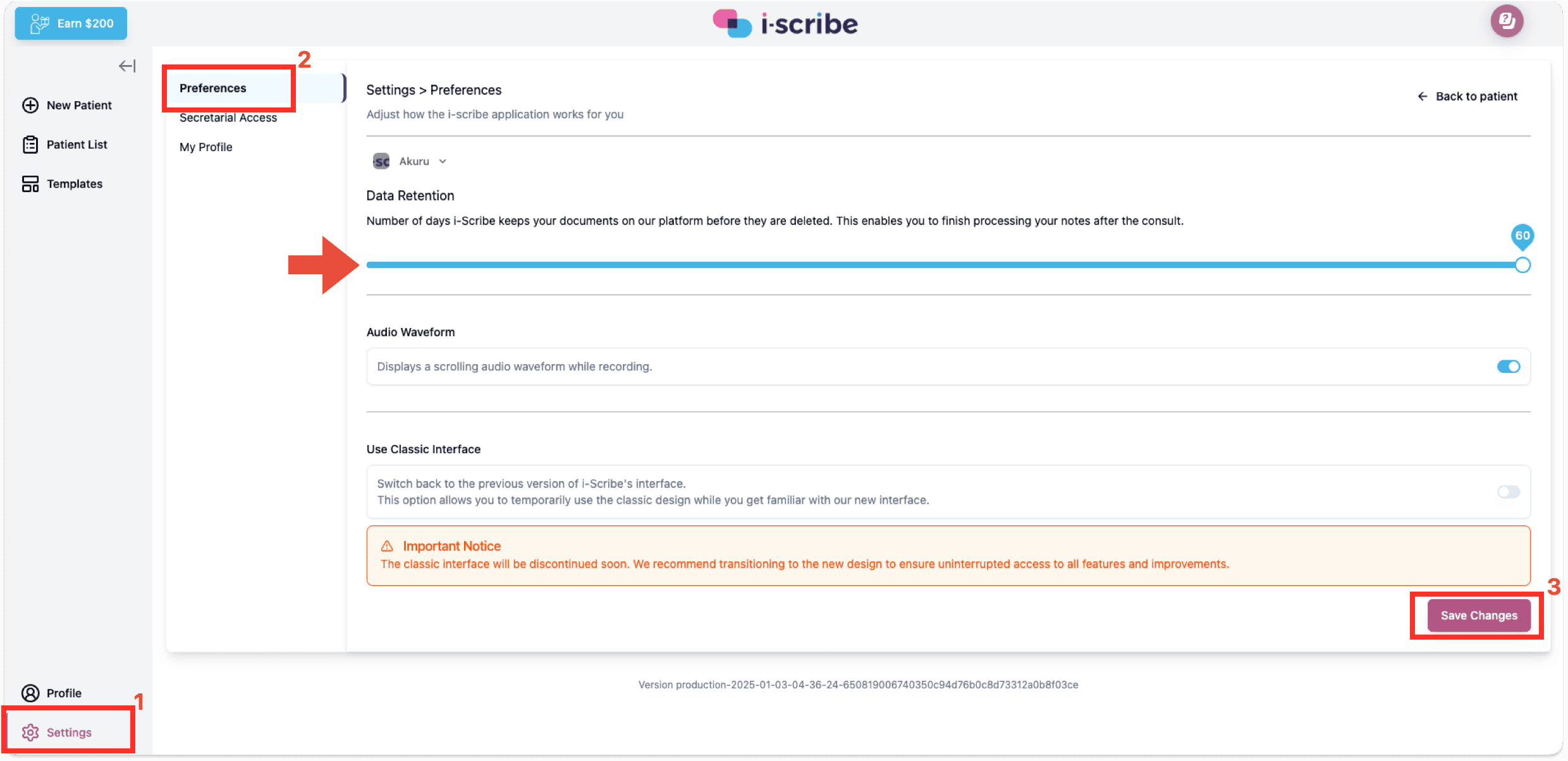
Image 1: Set your "Data Retention" time
Invite secretaries and other admin staff
- Click to Settings (number 1 in image below)
- Click to Secretarial Access (number 2 in image below).
- Enter the admin member's name and email
- Select Admin Management Authorisation if you want this staff member to have the ability to invite and add other admin staff.
- Click Invite User.
- An email will be sent to this staff member with instructions, prompting them to set up their secretarial account, linking it to your profile.
- You will see invited staff listed at the bottom of the Preferences page.
- Click Back to return to your i-scribe interface.
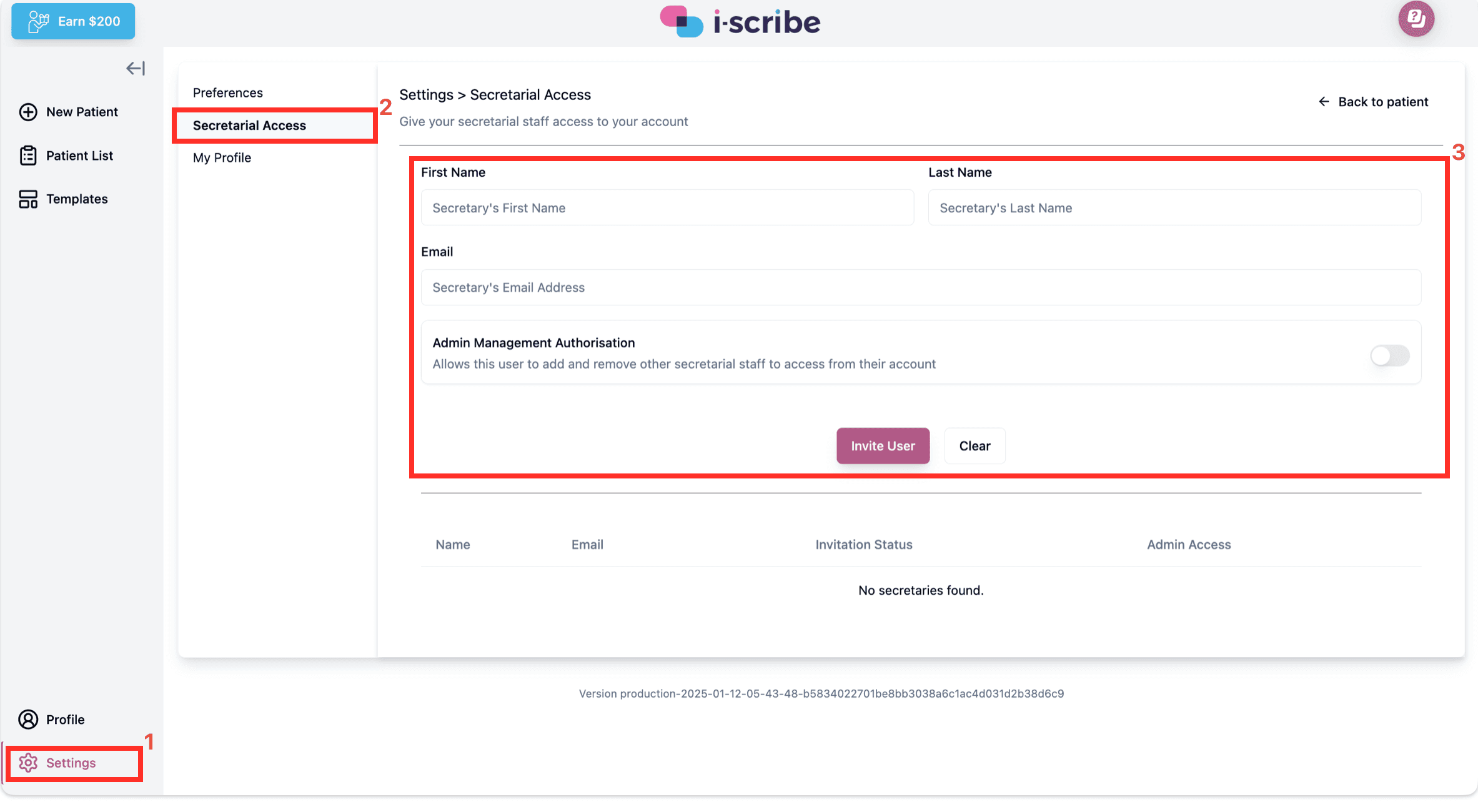
Image 2: Invite secretaries and other admin staff
Setting up default templates
- Click on the Templates button located on the top left side of the screen (red box in image below):
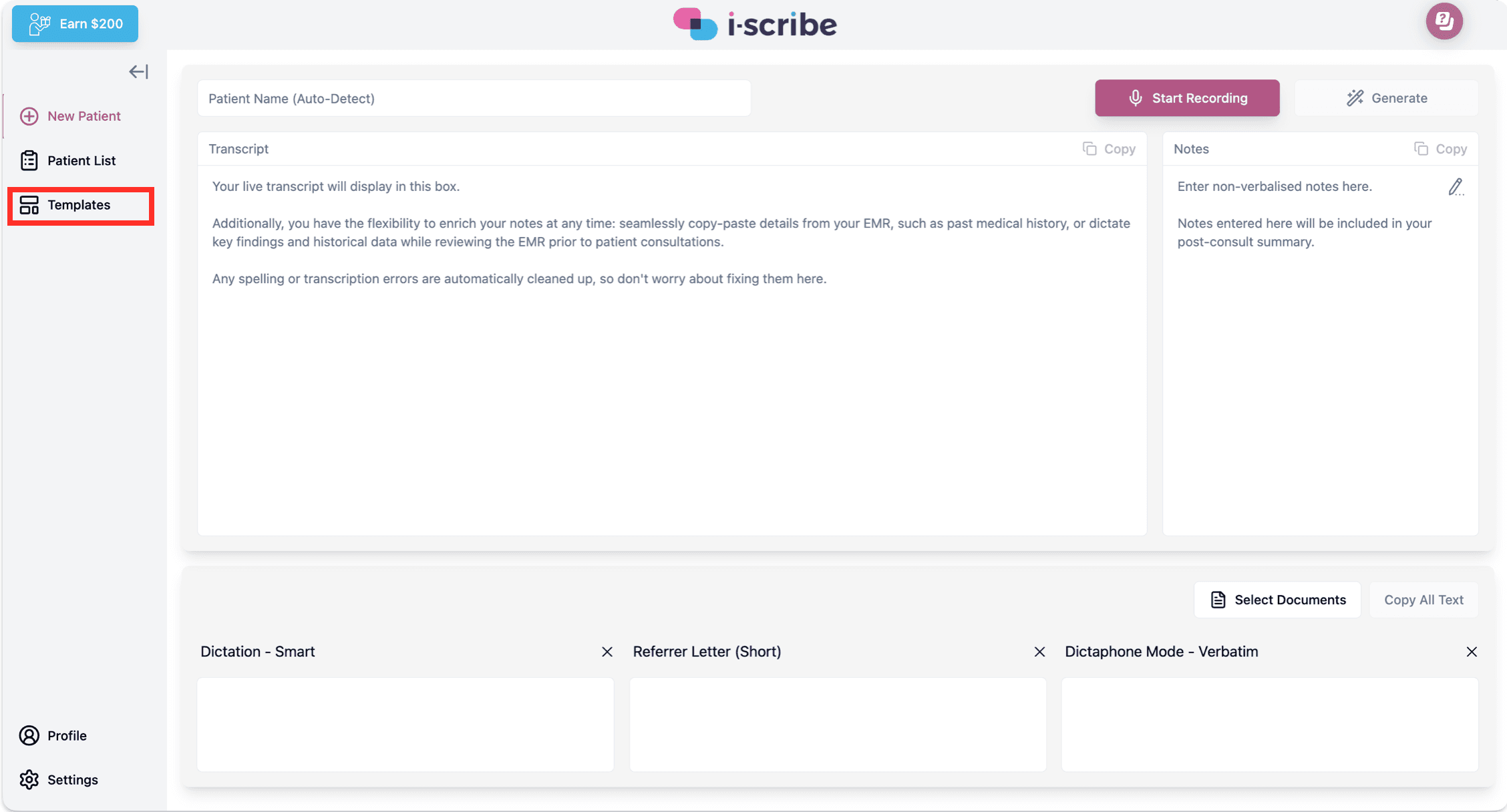
Image 3: Select default outputs
- This view will show you the "Default Outputs" for your account (refer to image below).
- From the "Default Outputs" section: deselect the outputs you don't want to appear by default From the "All Available" sections, select the outputs you do want to appear by default
Image 4: Select your desired Default Outputs
Tip: Default Outputs will generate automatically every time if selected. For documents you only use occasionally, leave them unselected.
- Click Home to return to the main dashboard.
Changing outputs without changing default options
- When you want to select (or deselect) an output (but, you don't want to change your default options) you can click "Select Documents" (refer to image below).
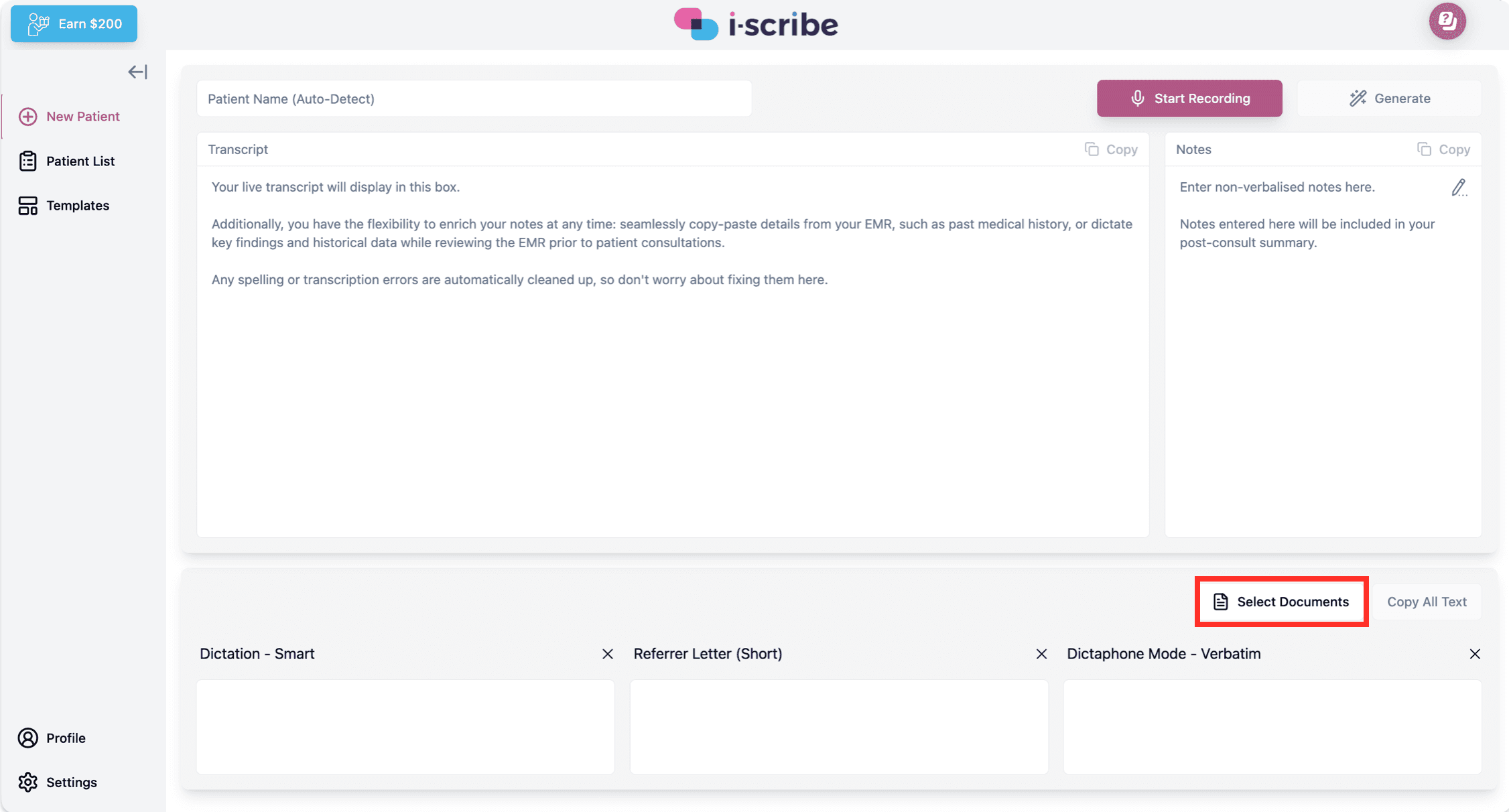
Image 5: Select outputs (without changing default outputs).
By following these steps, you’ll be all set up and ready to start scribing. Enjoy using i-scribe!
Was this guide helpful?