Using the Customise button
Ask for permanent changes to how your notes and letters are written, straight from the consult screen. Describe what you want, attach examples if you have them, and we will email you when it is ready.
The Customise button lets you ask for permanent changes to how i-scribe writes your notes and letters, without leaving the consult screen. Tell us what you want changed, the same way you would brief your secretary, and our team will update your templates. We email you when the change is ready, usually within 2 business days.
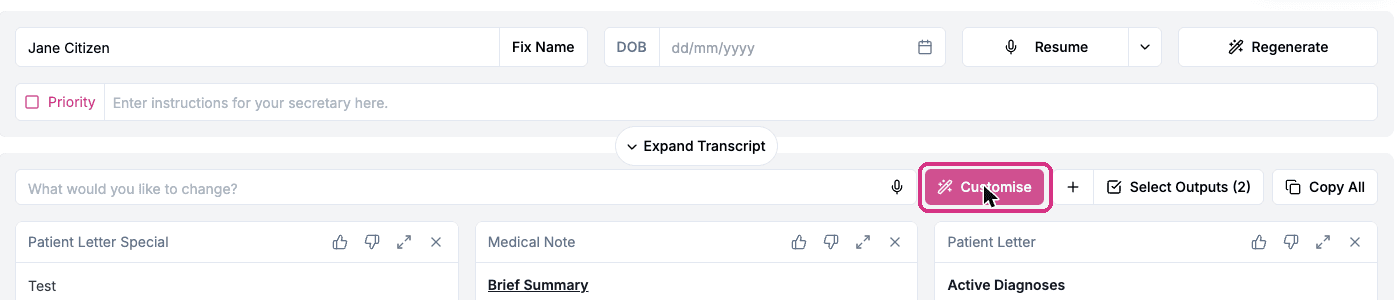
Customise or the change box: which one to use
There are two ways to change an output, and they do different things.
The "What would you like to change?" box (the adjustor tool) changes this consult only, and works straight away. Use it for small one-off fixes, e.g. "change pronouns to she/her" or "change diagnosis from CVA to TIA".
The Customise button changes your template, so every future consult that uses it is written the new way. It usually takes up to 2 business days. Use it for style, structure, headings, length, tone, sign-offs and phrases you always use.
If you find yourself making the same fix in the change box consult after consult, that is a sign to use Customise instead. Large rewrites in the change box are also less reliable, so use Customise for anything bigger than a small edit.
How to send a customisation request
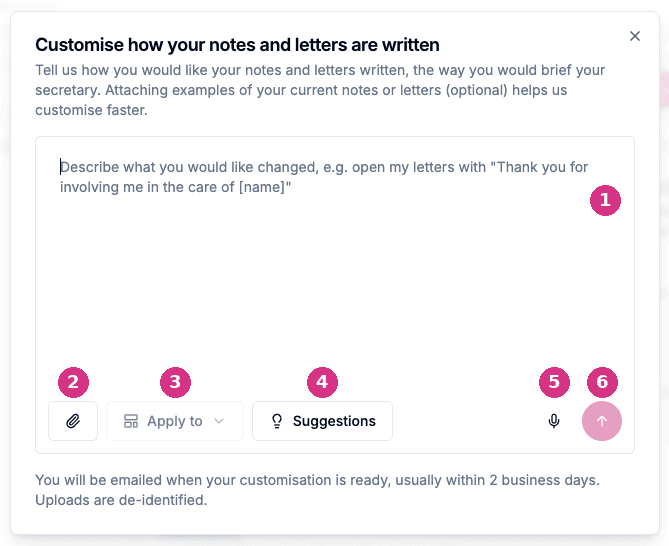
Open any consult and click Customise.
In the text box (1), describe what you would like changed. Write it the way you would brief your secretary, e.g. open my letters with "Thank you for involving me in the care of [name]".
Optional: click the paperclip (2) to attach examples of notes or letters you are happy with. You can attach up to 5 files.
Click Apply to (3) and tick the template or templates the change is for. You can search by name. Send stays greyed out until you choose at least one template.
Optional: click Suggestions (4) to add quick edits such as Shorter, Bullet points or More formal. They appear as tags above the toolbar, and you can remove one with its x.
Prefer to talk? Click the microphone (5), say your request, and click it again to stop. Your words appear in the text box so you can check them before sending.
Click Send (6). A green Customisation request sent message confirms it has gone through.
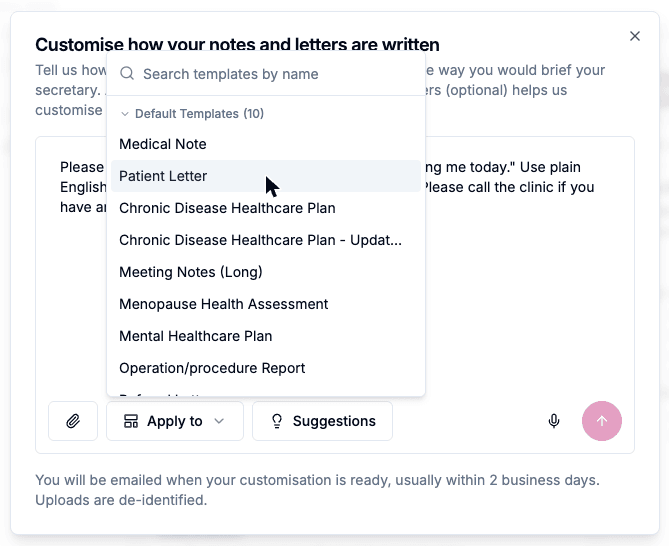
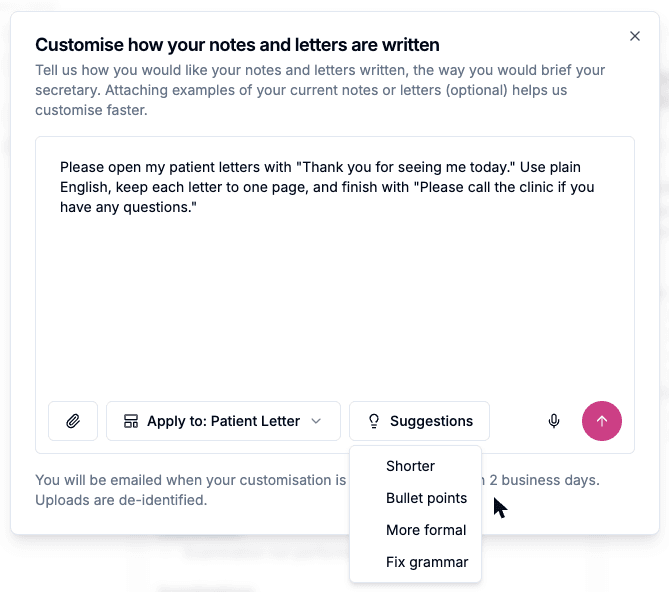
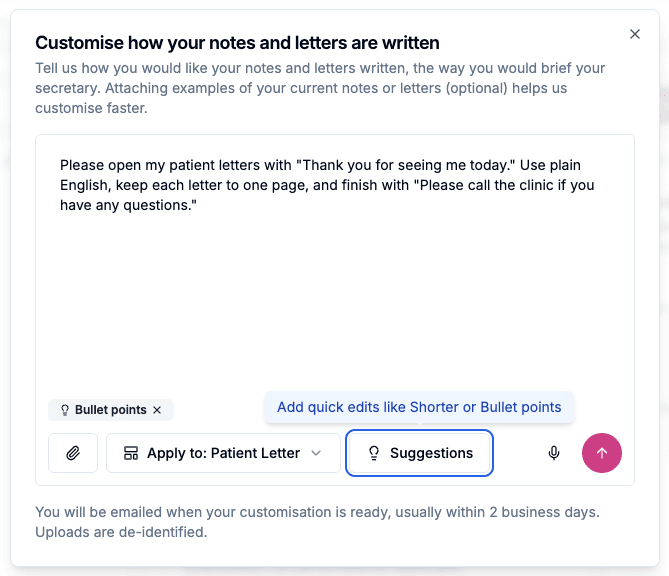
If you attached files, sending can take up to a minute. Keep the popup open and press Send only once. It closes by itself when the request has gone through.
Tips for getting the result you want
Be specific. "Make it better" is hard to act on. "Put the Plan section first, use bullet points under Plan, and keep the letter to one page" is easy.
Quote exact wording. If you always open or close a letter a certain way, type the exact phrase in quotation marks.
Attach real examples. The fastest way to get your style right is 2 to 3 examples of notes or letters written the way you like. Uploads are de-identified, but where you can, remove patient details or use a made-up example.
Say what to keep. If you like most of a template, say so, e.g. "Keep everything the same, but move Medications above Past History." This stops other parts changing.
Pick every template the change applies to. If you want the same sign-off on your Patient Letter and Referral Letter, tick both under Apply to rather than sending two requests.
Send separate requests for different changes. If you want one change to your Medical Note and a different change to your Patient Letter, send two requests so each is clear.
Use thumbs down for one-off problems. If a single output had an error, use the thumbs down on that output to tell us. If the same problem keeps happening, use Customise so we can fix the template.
Dictaphone - Smart and Dictaphone - Verbatim outputs are designed to stay close to what you dictate. Customising them can introduce errors, so read I want to customise my Dictaphone modes before requesting changes to these.
Frequently asked questions
How long does a customisation take?
Usually within 2 business days. We email you when it is ready.
Will it change the consult I am looking at?
No. Customisations apply to your templates going forward. For a quick fix on the current consult, use the "What would you like to change?" box.
What can I ask for?
Most changes to how your outputs are written: headings and their order, bullet points or prose, more or less detail, tone, length, standard opening and closing phrases, and matching your overall style. See Customising your outputs for a worked example.
Can I ask for a brand new template?
Yes. Describe the document you need, attach 2 to 3 examples, choose the closest existing template under Apply to, and say in your request that you would like it as a new template.
The template I want is not in the Apply to list. What do I do?
Name the template in your request and choose the closest one in the list, or email support@akuru.com.au and we will help.
Are my uploaded files safe?
Uploads are de-identified. Where you can, remove patient details from examples before attaching them.
I pressed Send and nothing seems to be happening.
If you attached files, processing can take up to a minute. Wait for the popup to close and the green confirmation to appear. If it has not appeared after a couple of minutes, email support@akuru.com.au.
Was this guide helpful?